Automations and journeys

Journeys that follow each customer based on what they do

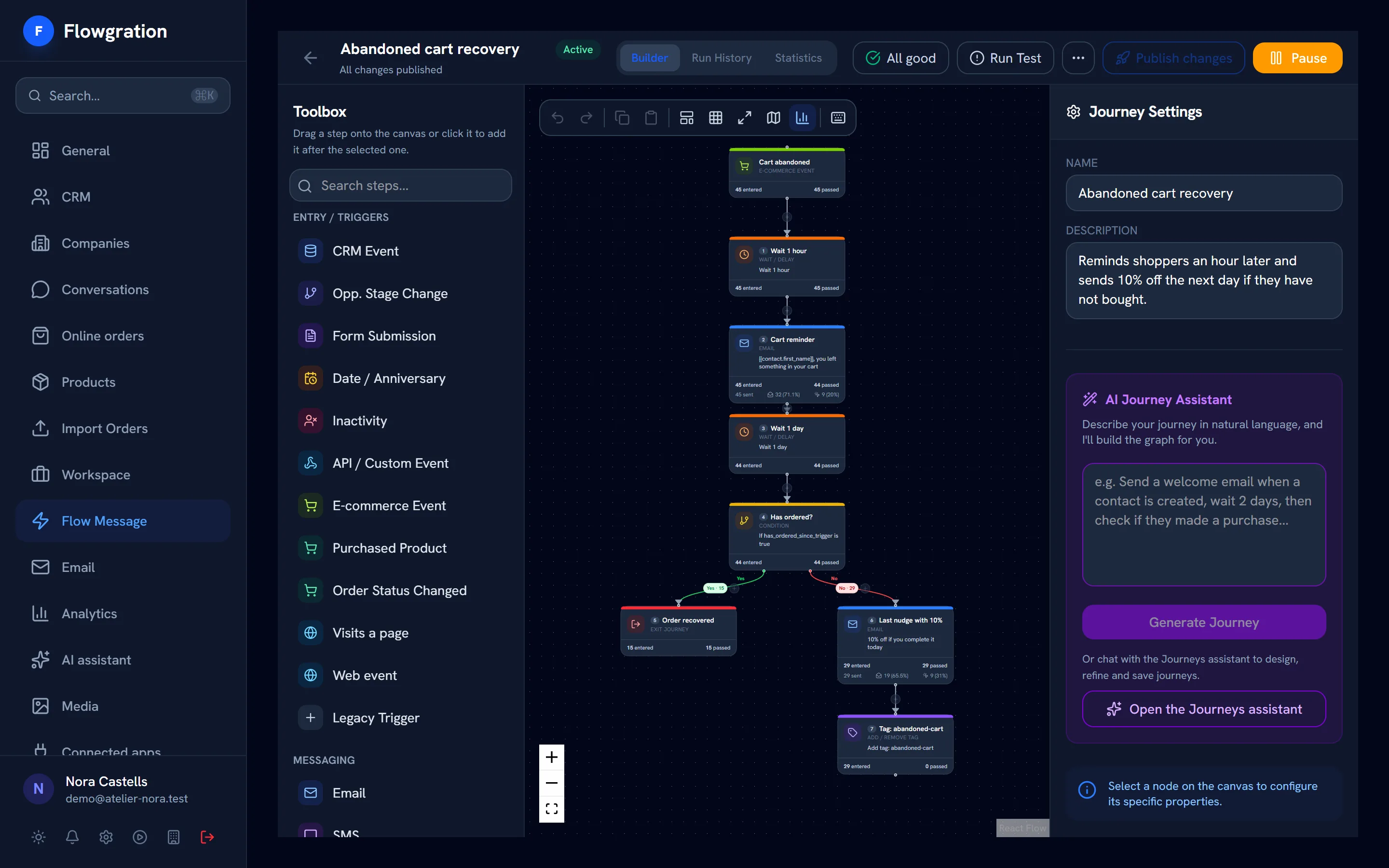
Draw the path in a visual editor: the trigger, the waits, the conditions and the messages by email, SMS or WhatsApp. Each branch responds to what the customer did, and every step shows how many people go through it.

No credit card · One active email journey on the free plan
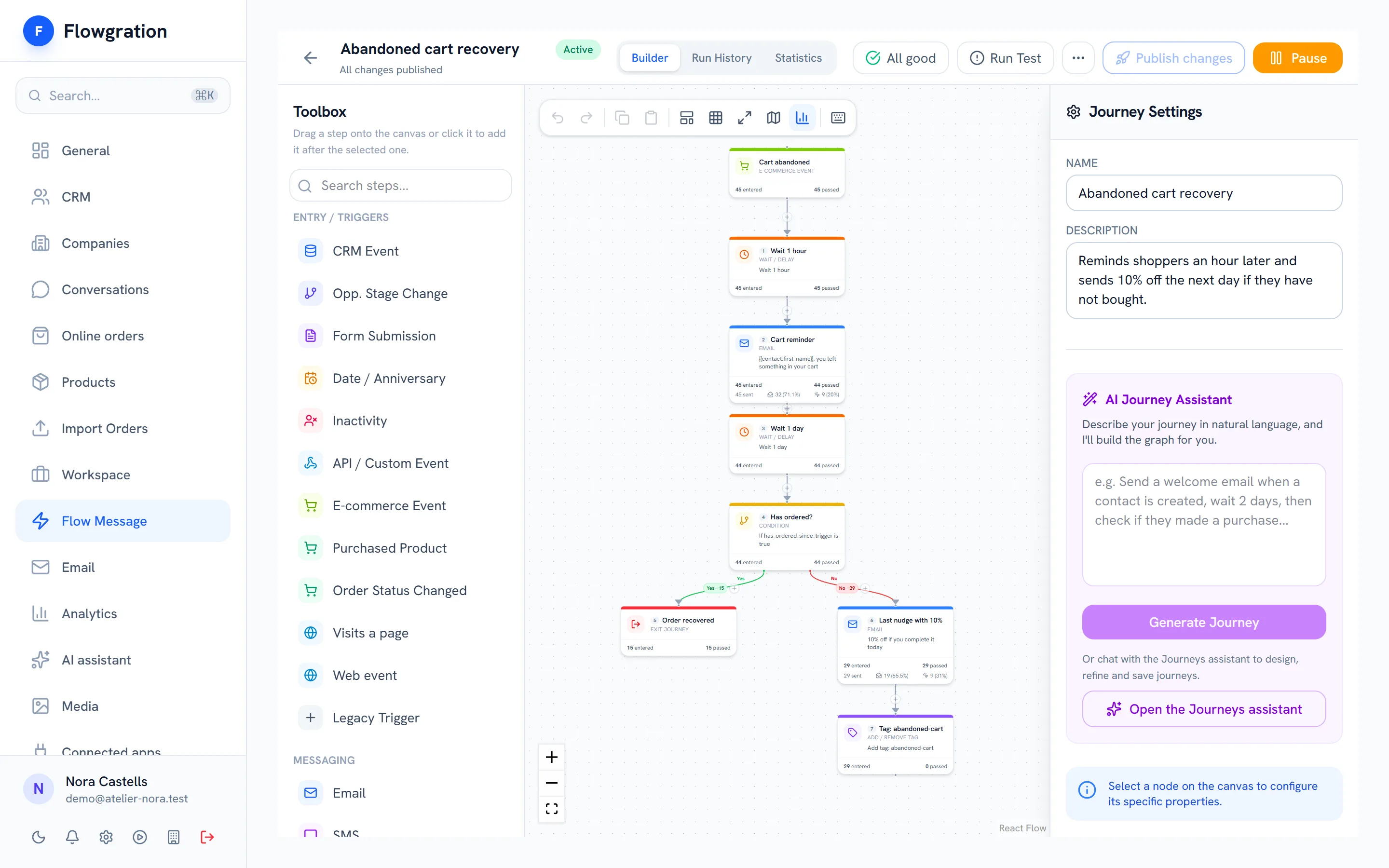
Abandoned cart journey in the visual builder with sends, opens and clicks on each step

Sample data

The journey is the step that does the follow-up

It is started by what happens in the CRM, your forms, your bookings, your payments or your store, and its results go back to the customer record and the campaign report.

How it all connects

  1. 01
    Link page
    Your bio link, with your buttons, your socials and a QR code
  2. 02
    Form or booking
    The customer leaves their details or picks a slot
  3. 03
    Contact + deal
    Created or filled in on their own in the CRM
  4. 04
    Journey
    Welcome, confirmation or reminder, hands-free
  5. 05
    Campaign report
    See which campaign brought each contact and each sale
Triggers

Start from what happens in your business

A journey can start when a contact is created, a form is submitted, a booking changes, a payment arrives in your own Stripe account or an order comes in from your store.

  • Contact created or updated, tag added and deal stage changed
  • Form submitted and bookings created, confirmed, changed or cancelled
  • Payments received, failed or refunded in your own Stripe account
  • Orders and abandoned carts from Shopify or WooCommerce, inactivity and dates such as birthdays
Triggers
CRM
Contact createdTag addedStage changed
Capture
Form submittedVisits a page
Bookings
Booking confirmedBooking changedBooking cancelled
Payments and store
Payment receivedPurchase completedAbandoned cart
Time
InactivityDate / Anniversary
Branches

Each branch responds to what the customer did

After each message, the journey checks what happened and takes the right path: a reminder for whoever did not open, another channel for whoever did not click, an exit for whoever already bought.

  • Conditions on opens, clicks and replies for one email or the whole journey
  • Whether they bought since entering, their booking status, their tags or their fields
  • Waits, sending windows and a cap on messages per contact
  • Goals that take whoever already converted out of the journey
Welcome journey
  1. 1Form submitted
  2. 2Welcome email
  3. 3Wait 2 days
  4. 4Opened the email?
Yes
  • Email with your offer
No
  • WhatsApp with an approved template
Example journey
AI designer

Describe it and AI builds the draft

Explain in your own words what you want to automate and the AI designer proposes the whole journey, with its steps and its emails written. You review it, change it and switch it on.

  • The result is always a draft: nothing goes live and nothing is sent
  • Every step and every email can be edited before you switch it on
  • Test runs to check the journey before you publish it
  • AI assistant from the Growth plan, with monthly AI credits
AI journey assistant
  • Your request
    "Welcome new subscribers and, if they don't buy within a week, send them a reminder"
  • Proposal
    Trigger, waits, condition and written emails
  • Status
    Not active and will send nothing until you review and switch it on
    Draft
Illustration of the assistant
The building blocks

More than chained emails

Journey steps also work inside the CRM.

Email, SMS and WhatsApp

All three channels in the same journey; SMS and WhatsApp with your own accounts, from the Growth plan.

CRM actions

Update fields, add or remove tags, create tasks, assign an owner or log an activity.

Team alerts

Notify your team by email, inside the app or by webhook when a customer does something important.

A/B tests in the journey

Test two versions of a step and let the winner be picked automatically (from the Growth plan).

Sending window

Choose the days and hours for sending, and the journey waits until the window opens.

Analytics per step

Sends, opens and clicks on every step, plus a report with the funnel, waits and A/B test results.

Automation frequently asked questions

What can trigger a journey?
Among others: a contact created or updated, a tag added, a stage change, a form submitted, a booking created, confirmed, changed or cancelled, a payment in your own Stripe account, an order or an abandoned cart from Shopify or WooCommerce, inactivity or a date such as a birthday.
Does the AI designer switch journeys on by itself?
No. The designer always creates a draft that is not active and sends nothing. You review it, adjust it and decide when to switch it on.
Can I use SMS and WhatsApp in journeys?
Yes, from the Growth plan and with your own accounts: Twilio for SMS and Meta's WhatsApp Business API for WhatsApp. Outside the 24-hour window, WhatsApp only allows approved templates.
How many journeys can I have active?
Free includes one active journey and Essential five, email only in both cases. Growth allows 25 multichannel journeys, Pro 100, and Business works on fair use.

Hand the follow-up to a journey

Pick a trigger, add the steps and switch it on once you have reviewed it.

Start free